Black Shark Smartwatch Notifications Not Working? How to Fix It with These 7 Settings
Last updated: 12 Nov 2026
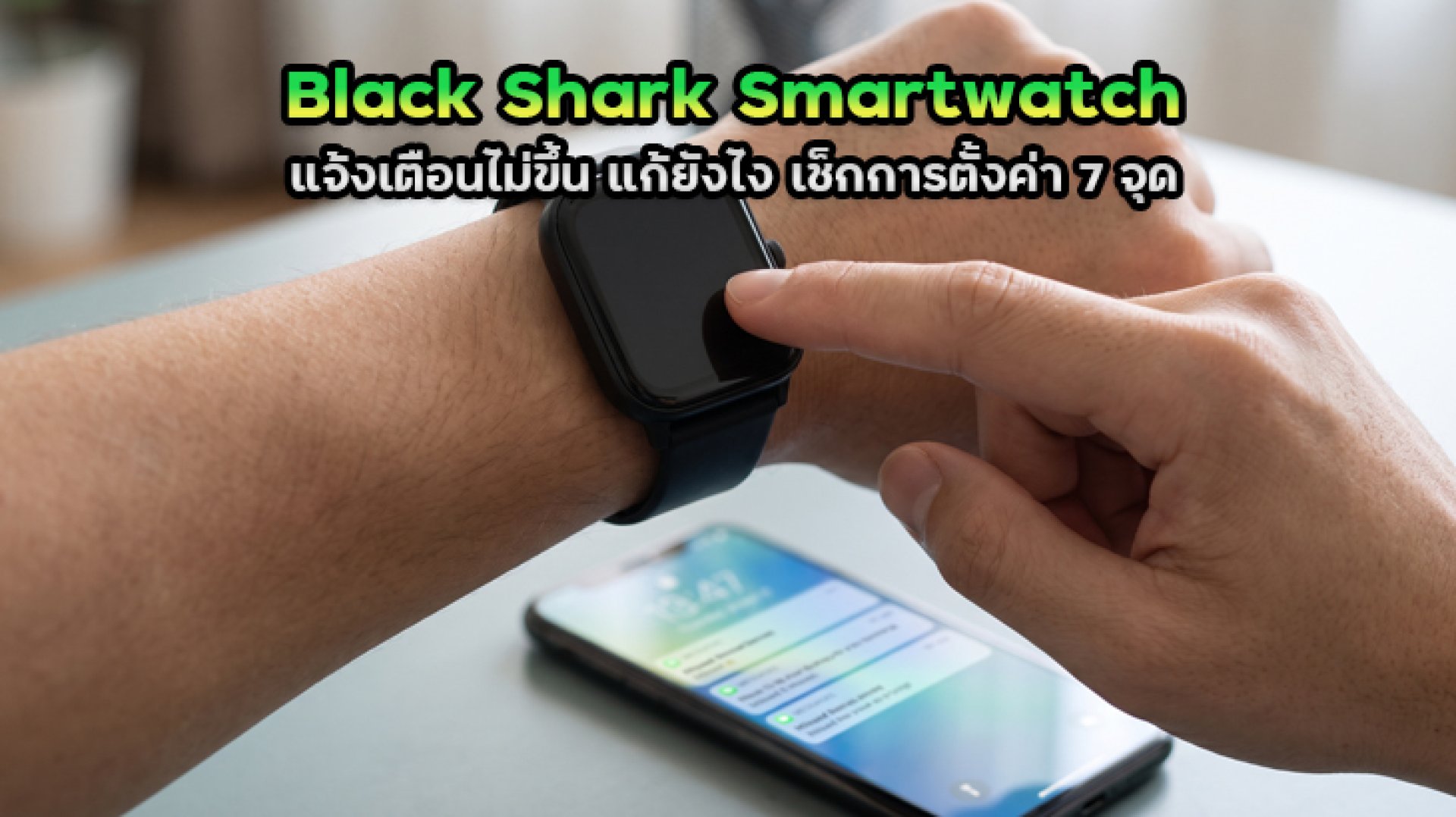
You bought a smartwatch to check LINE messages, see incoming calls, and read phone notifications right from your wrist. But when you start using it, your Black Shark Smartwatch notifications are not working. Your phone receives messages as usual, but nothing appears on your watch. Sometimes notifications arrive inconsistently, or incoming calls appear on your phone without any alert on your wrist. The good news is that this does not necessarily mean your smartwatch is broken. The problem may be related to Bluetooth connectivity, notification permissions, or your phone's background app restrictions. If your Black Shark Smartwatch notifications are not working, check these 7 settings before sending your watch for repair or performing a factory reset. Many notification problems can be fixed in just a few minutes.
Why Are Black Shark Smartwatch Notifications Not Working?
Before troubleshooting, it helps to understand how smartwatch notifications work. Most smartwatches in this category connect to a smartphone through Bluetooth and a companion app. When a message arrives, the phone and companion app work together to send the notification to the watch. This means that simply turning on Bluetooth does not guarantee that every notification will appear on your smartwatch. The app may not have permission to access notifications, or your phone may restrict its background activity. Another important point is that different Black Shark models may use different companion apps, such as Shark Wear, Shark Wearable, or Shark Fit. Always check the app specified in your watch's user manual instead of switching between apps without confirming compatibility.7 Settings to Check When Black Shark Smartwatch Notifications Are Not Working
1. Check Whether Bluetooth Is Connected to Your Smartwatch
Start with the basics. If your phone has lost its Bluetooth connection to the watch, the smartwatch may stop receiving notifications even though it is still powered on and displaying the time. Follow these steps:- Turn on Bluetooth on your smartphone.
- Open the companion app used to connect your smartwatch.
- Check whether the device status shows Connected.
- If it shows Disconnected, turn Bluetooth off and on again.
- Keep your phone close to the watch and wait for the connection to be restored.
2. Check Notification Permissions in Shark Wear or Your Companion App
Another common reason for missing notifications is that the smartwatch is connected successfully, but the companion app has not been configured to forward notifications. Open the app used to connect your watch and look for Device Settings, Notifications, or a similar menu. Check whether notifications are enabled for the apps you want to receive alerts from. Common apps to check include:- SMS messages
- LINE
- Messenger
- Incoming calls
3. Enable Notification Access on Your Smartphone
Enabling notifications in the companion app may not be enough. Some smartphones also require you to grant the app permission to access system notifications. **For Android** Menu names may vary depending on your phone brand and Android version. Start by checking the following:- Open Settings on your phone.
- Search for Notification Access.
- Find the app used to connect your Black Shark smartwatch.
- Enable notification access for that app.
- Return to the app settings and check its notification permissions again.
- Open Settings.
- Select Notifications.
- Choose the app you want to receive notifications from, such as LINE or Messenger.
- Turn on Allow Notifications.
- Check the notification preview and alert display settings as well.
4. Check Whether Your Phone Restricts Background App Activity
This setting is often overlooked, especially on Android phones with aggressive battery management. When your phone detects that an app is using too much power, it may restrict background activity or automatically close apps that are not being used. As a result, the companion app may not be able to receive notification data and forward it to your smartwatch consistently. To check this:- Open Settings on your phone.
- Select Apps and find the smartwatch companion app.
- Open Battery or App Battery Usage.
- Check whether background activity is restricted.
- If available, consider selecting Unrestricted or Allow Background Activity.
5. Check Do Not Disturb and Battery Saver Modes
Sometimes everything appears to be connected correctly, but your smartwatch does not vibrate or display notifications. One possible reason is that Do Not Disturb (DND) is enabled. Check both your smartphone and smartwatch, especially if you have scheduled DND to activate automatically at night or during work hours. Things to check include:- Temporarily turn off Do Not Disturb to test notifications.
- Check whether DND is scheduled to activate automatically.
- Check Sleep Mode or similar settings if your watch supports them.
- Temporarily disable Battery Saver to test notification delivery.
6. Check Notification Settings in the Original Apps
If your smartwatch receives notifications from other apps but not from LINE or Facebook, do not immediately assume the watch is faulty. The problem may be caused by the notification settings of the original app. For example, if you have muted a specific LINE chat or disabled Messenger notifications on your phone, the companion app may have no notification to forward to your watch. Try the following:- Open the app that is not sending notifications.
- Go to Settings or Notification Settings.
- Check whether message and call notifications are enabled.
- Make sure the chat or conversation has not been muted.
- Ask someone to send you a test message.
7. Update the App and Firmware, Then Try Pairing Again
If you have checked all six settings and your Black Shark Smartwatch notifications are still not working, check for updates to the companion app and watch software. Recommended steps:- Check whether a newer version of the companion app is available.
- Open the app and check for smartwatch firmware updates, if this option is available.
- Restart both your phone and smartwatch.
- Test notification delivery again.
Quick Troubleshooting Table: Which Setting Should You Check?
| Problem | What to Check First |
|---|---|
| No notifications from any app | Bluetooth connection and Notification Access |
| Notifications missing from specific apps | Notification permissions in the companion app and original app |
| Notifications work only when the app is open | Background activity and Battery Optimization |
| Messages arrive but the watch does not vibrate | DND mode and vibration settings |
| Messages arrive but the screen does not turn on | Wake screen on notification settings |
| Notifications arrive inconsistently | Bluetooth range and app connectivity |
| Everything is configured but notifications still fail | App updates, firmware updates, and re-pairing |
Frequently Asked Questions About Black Shark Smartwatch Notifications
Why Are LINE Notifications Not Showing on My Black Shark Smartwatch?
First, check whether your phone receives LINE notifications normally. Then enable LINE notifications in both the companion app and your phone's notification settings. Make sure the specific chat has not been muted. If you use Android, also check whether background activity is restricted for the companion app.Why Does My Black Shark Smartwatch Not Show Notifications Even Though Bluetooth Is Connected?
Bluetooth is only one part of the notification system. Your phone must also grant Notification Access, the companion app must be configured to forward notifications, and background activity must be allowed. Check all these settings together.Why Do Notifications Work Only When the Shark Wear App Is Open?
This may happen because your phone restricts the companion app's background activity. Check Battery Optimization, Background App Refresh, or automatic app management settings, depending on your phone brand. Allow the companion app to run in the background if the option is available.Does Black Shark Smartwatch Need Bluetooth to Stay On All the Time?
Generally, yes. If you want your smartwatch to receive notifications from your phone continuously, Bluetooth must remain enabled and the devices must maintain a connection. If Bluetooth is turned off or the watch moves out of connection range, new notifications may not reach it.Do I Need to Reset My Smartwatch If Notifications Are Not Working?
Not immediately. Check Bluetooth, notification permissions, the companion app, and background activity first. If the problem continues, try re-pairing the watch or consider a factory reset according to the instructions for your specific model.Conclusion: Check These 7 Settings Before Resetting Your Black Shark Smartwatch
Black Shark Smartwatch notifications not working does not always mean that your watch is faulty. In many cases, the cause is a simple setting that has been overlooked, such as a disconnected Bluetooth connection, missing notification permissions, restricted background activity, or an enabled Do Not Disturb mode. To fix the problem efficiently, start by checking Bluetooth and notification permissions. Then move on to background activity and the notification settings of the original apps. This process can help you identify whether the issue comes from your smartphone, companion app, or smartwatch. Most importantly, check the correct companion app and setup instructions for your specific model. Different Black Shark smartwatches may use different apps and settings, so following the right instructions is the best way to get notifications working again. **References**Related Content