How to Use KOSPET GPS: Setup Guide and Fixes for Smartwatches That Cannot Find a GPS Signal
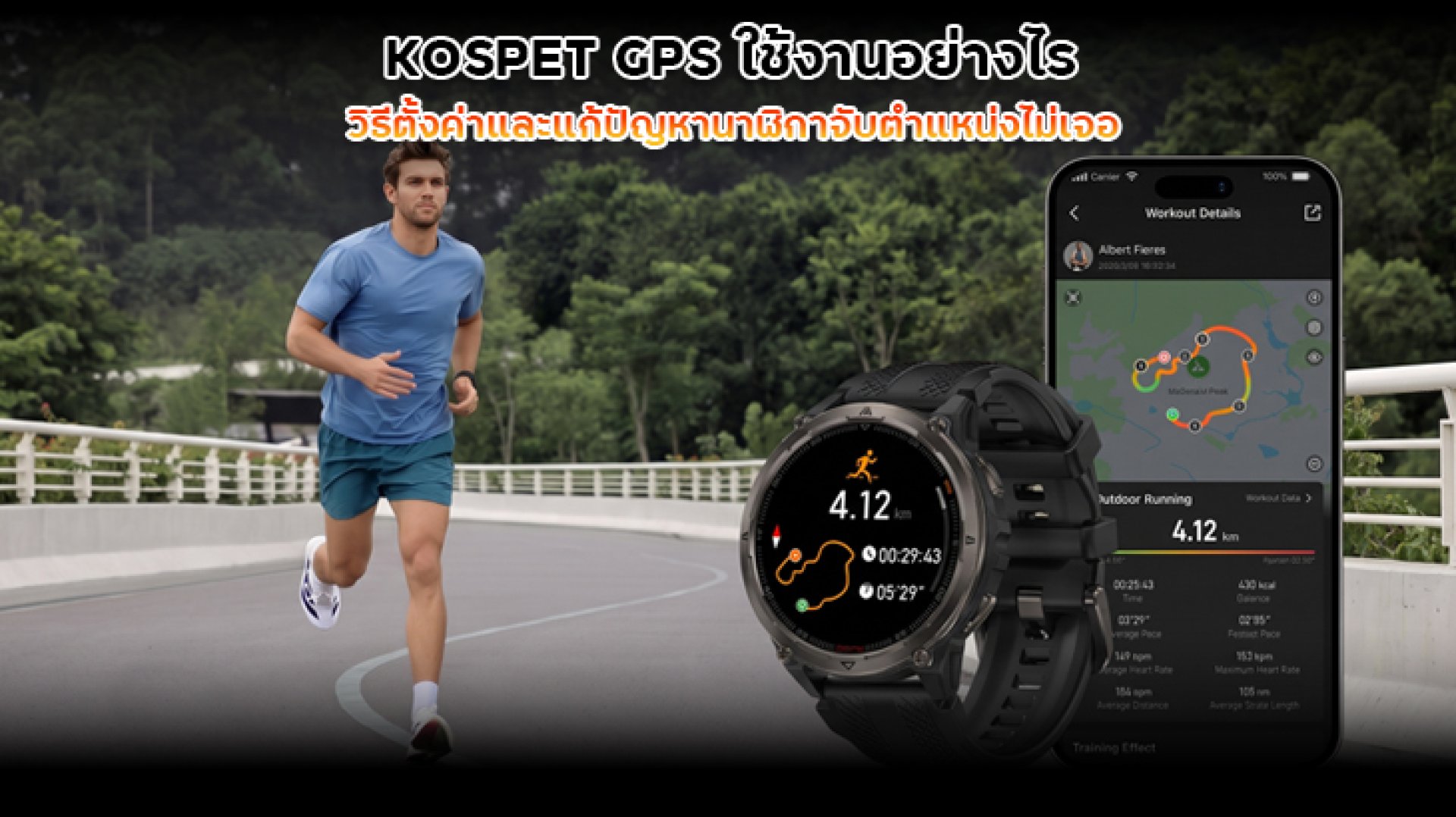
Having trouble getting your KOSPET smartwatch to detect your location? Or are you unsure how to use its built-in GPS to track your running or cycling routes? Understanding how KOSPET GPS works can help you get more accurate workout data and avoid common tracking problems.
This guide explains how to use KOSPET GPS, how to start tracking outdoor activities, how to check your recorded routes, and how to troubleshoot problems such as slow GPS reception, inaccurate distances, or GPS failing to connect.
What Is KOSPET GPS and What Can It Do?
KOSPET GPS is a satellite positioning system available on selected KOSPET smartwatch models. It allows the watch to determine your location and record movement during outdoor activities without necessarily relying on your smartphone's GPS.
Benefits of Built-in GPS
- Track outdoor workouts: Record running, walking, and cycling routes.
- Measure distance: Calculate the distance covered during an activity.
- Monitor pace and speed: Provide location-based workout data.
- Review routes: Check recorded workout routes through the compatible app.
- Exercise without carrying your phone: Supported models can record GPS data independently.
However, GPS availability depends on the specific KOSPET model. Not every KOSPET smartwatch has built-in GPS, so check the product specifications or user manual before using this feature.
Which KOSPET Smartwatches Support Built-in GPS?
Not all KOSPET smartwatches include built-in GPS. Some models rely on a connected smartphone for location information, while others have their own GPS receiver.
Examples of KOSPET GPS-Compatible Models
According to KOSPET's official FAQ, models listed with built-in GPS include:
- KOSPET TANK M3 ULTRA
- KOSPET TANK X2 ULTRA
- KOSPET TANK S2
Model availability and specifications may vary by market and product version. Always check the official product page or user guide for the exact model you own.
How to Use KOSPET GPS for Outdoor Activities
Using KOSPET GPS is generally straightforward. On supported models, GPS tracking starts automatically when you select an outdoor workout mode that uses satellite positioning.
Step 1: Move to an Open Area
Before starting your workout, move to an open space with a clear view of the sky. Avoid starting GPS tracking inside buildings, underground parking areas, or locations surrounded by tall buildings.
Step 2: Select an Outdoor Workout Mode
Open the workout menu on your KOSPET smartwatch and select a supported outdoor activity, such as:
- Outdoor Running
- Outdoor Walking
- Outdoor Cycling or Riding
- Mountaineering
- Trail Running
Available workout modes depend on the watch model. Some models may also support additional outdoor sports.
Step 3: Wait for GPS Positioning
Allow the watch to acquire a GPS signal before beginning your workout. The time required to connect may vary depending on your surroundings, satellite conditions, and whether the watch has recently been used for GPS tracking.
Step 4: Start Your Workout
Once GPS positioning is ready, start your activity. The watch will record relevant workout information, such as distance, pace, duration, and route data, depending on the model.
Step 5: Sync Your Workout Data
After finishing your workout, save the activity and open the KOSPET FIT app on your smartphone. Make sure Bluetooth is enabled and the watch is connected to the app. Allow the devices to synchronize so you can review your workout history and available route information.
Why Is My KOSPET GPS Not Finding a Signal?
If your KOSPET smartwatch cannot find a GPS signal, the problem may be related to your surroundings, satellite reception, or the watch's GPS settings.
1. You Are Using GPS Indoors
GPS signals can be weak or unavailable inside buildings. Try moving outdoors to an open area before starting your workout.
2. Tall Buildings or Trees Are Blocking the Signal
High-rise buildings, dense forests, and deep valleys can interfere with satellite reception. Move to a location with a clearer view of the sky.
3. You Started Moving Too Quickly
Starting an activity before GPS positioning is ready may affect the accuracy of the recorded route. Wait for the watch to acquire a signal before moving.
4. Your Watch Does Not Have Built-in GPS
Some KOSPET models do not include an independent GPS receiver. If your watch relies on connected GPS, you may need to bring your smartphone and keep it connected during the workout.
5. The Watch Needs to Be Restarted
If GPS reception remains unsuccessful, restart your smartwatch and try again in an open area. You can also check whether a firmware update is available for your model.
How to Fix Common KOSPET GPS Problems
Use the following troubleshooting table to identify possible causes and solutions.
| Problem | Possible Cause | Recommended Solution |
|---|---|---|
| GPS cannot find a signal | Weak satellite reception | Move to an open area with a clear view of the sky |
| GPS takes too long to connect | Buildings or environmental interference | Wait outdoors before starting your workout |
| Recorded distance is inaccurate | GPS signal instability | Wait for GPS positioning before moving |
| Route information is missing | GPS was unavailable or the activity was not recorded correctly | Check whether the selected workout mode supports GPS |
| Workout data does not appear in the app | Bluetooth synchronization issue | Reconnect the watch and KOSPET FIT, then synchronize again |
| GPS tracking stops unexpectedly | Temporary software or reception issue | Restart the watch and test GPS in an open area |
Does KOSPET GPS Drain the Battery Faster?
Yes. Using built-in GPS generally consumes more battery power than using basic smartwatch functions because the watch continuously receives satellite signals and calculates your position.
Tips to Reduce GPS Battery Consumption
- Use GPS only when tracking outdoor activities.
- Turn off unnecessary features when you do not need them.
- Avoid leaving GPS-based workout tracking running after exercising.
- Keep your smartwatch firmware updated when updates are available.
- Check the battery specifications for your particular KOSPET model.
Actual battery life depends on the model, GPS settings, workout duration, and other active features.
Frequently Asked Questions About KOSPET GPS
Can I use KOSPET GPS without my smartphone?
Yes, if your KOSPET smartwatch has built-in GPS. You can record supported outdoor activities without carrying your phone. However, you may need your smartphone later to synchronize and review workout data in the KOSPET FIT app.
Can KOSPET GPS work indoors?
GPS reception is generally poor indoors because buildings and roofs can block satellite signals. For more reliable positioning, use GPS outdoors in an open area.
Why is the distance recorded by KOSPET GPS different from the actual distance?
Distance differences can occur due to weak satellite reception, tall buildings, trees, or unstable GPS positioning. Waiting for a stable signal before starting your workout can help improve tracking accuracy.
Do all KOSPET smartwatches support GPS?
No. Built-in GPS is available only on selected models. Check your smartwatch specifications or official user manual to confirm whether your model supports independent GPS tracking.
Conclusion: Get the Most Out of Your KOSPET GPS
KOSPET GPS makes it easier to track outdoor activities, measure distances, and review workout routes on compatible smartwatch models. For the best results, start your workout in an open area, wait for GPS positioning, and select an outdoor activity mode that supports satellite tracking.
If your KOSPET GPS cannot find a signal, check your surroundings, confirm that your model has built-in GPS, and restart the watch if necessary. These simple steps can help you get more reliable workout tracking and make better use of your KOSPET smartwatch.