How Hot Is Too Hot for a Gaming Laptop? How to Check CPU and GPU Temperature
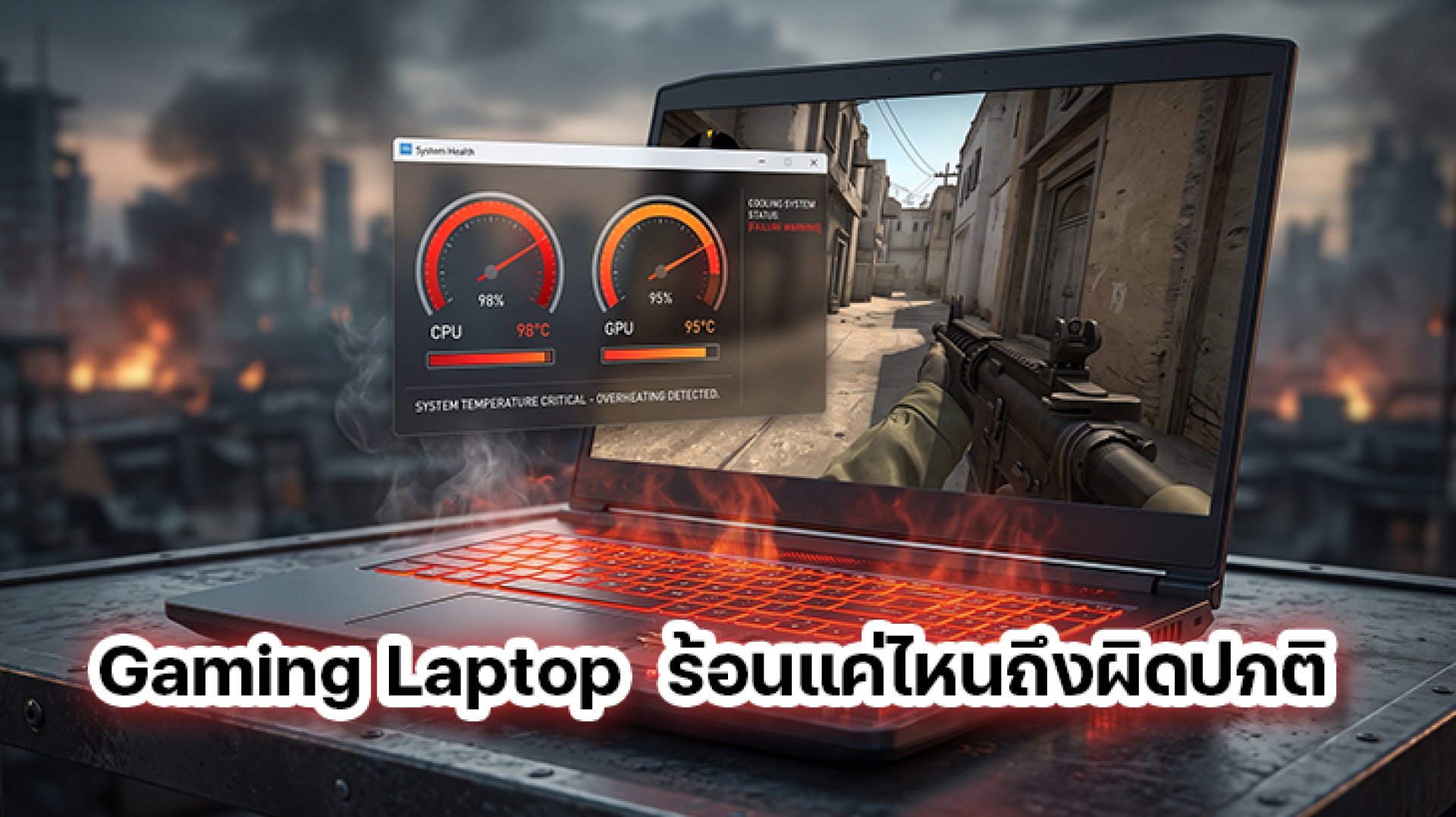
Ever started playing a game with smooth FPS, only to notice that your laptop gets hotter and hotter, the fans start sounding like a tiny jet engine, and the game suddenly feels less smooth?
The first question that probably comes to mind is:
Is my gaming laptop getting too hot?
But laptop temperature is not quite that simple. Seeing a CPU or GPU reach 80°C, 90°C, or even higher does not automatically mean that the laptop has a problem.
What matters more than asking What temperature is too hot? is understanding what happens to the laptop's CPU/GPU performance, clock speed, power consumption, and FPS as temperature increases.
Intel explains that processor temperatures can vary depending on workload, processor design, chassis, cooling solution, and system fan control. This means there is no single temperature that can be considered normal for every laptop.
How Hot Is Too Hot for a Gaming Laptop?
The short answer is: there is no single temperature that applies to every gaming laptop.
Gaming laptops are designed to handle much heavier workloads than laptops used mainly for web browsing, video playback, or office applications. When you play demanding games, the CPU and GPU may operate continuously at high utilization, which increases power consumption and heat.
Intel notes that processor temperature can increase significantly under gaming workloads. A high temperature during a demanding workload does not automatically mean that the processor is overheating or malfunctioning.
So before you panic and think, Oh no! Is my laptop about to die?
Look at the laptop's overall behavior.
Why Does a Gaming Laptop Get Hot While Gaming?
The basic idea is simple:
Higher Workload Higher Power Consumption More Heat More Cooling Required
When you play a demanding game, the CPU may handle game logic, physics, AI, background tasks, and other calculations. At the same time, the GPU is rendering graphics, textures, lighting, effects, and frames.
As workload increases, power consumption and heat generation can also increase.
The cooling system then has to remove that heat from the system.
Microsoft explains that Windows thermal management can use both active cooling, such as fan control, and passive cooling, such as reducing device performance, to manage thermal conditions.
What CPU Temperature Should You Watch While Gaming?
CPU temperature is one of the first numbers gamers usually monitor. However, the highest temperature shown by a monitoring application should not be treated as the complete story.
Instead, look at CPU temperature together with workload and CPU behavior over time.
| What You See | What It May Mean |
|---|---|
| CPU temperature increases when a game starts | Expected behavior under a higher workload |
| Temperature fluctuates with different game scenes | CPU workload is changing |
| Temperature is high but performance remains stable | High temperature alone does not prove a problem |
| Temperature is high while clock speed and performance decrease | Thermal or power limiting should be investigated |
Modern processors can dynamically adjust frequency and power based on workload, temperature, and system conditions.
That means a temperature reading should always be interpreted in context.
What About GPU Temperature?
For gaming laptops, don't look at the CPU alone.
The GPU can be one of the hardest-working components during graphically demanding games, especially when using high resolutions, high graphics settings, or features such as ray tracing.
When monitoring the GPU, pay attention to:
- GPU Temperature
- GPU Usage
- GPU Clock
- GPU Power
- FPS
- Frame Time
If GPU temperature increases while GPU clock speed and FPS remain stable, the temperature alone does not necessarily indicate a problem.
On the other hand, if FPS decreases at the same time as GPU clock speed or power drops while temperature is high, thermal or power limits may be worth investigating.
Can a Laptop Run at a High Temperature Without Thermal Throttling?
Yes.
This is one of the most important things to understand about gaming laptop temperatures.
A high CPU or GPU temperature does not automatically mean that Thermal Throttling is occurring.
Modern processors continuously monitor temperature and can dynamically adjust frequency and power to manage thermal conditions.
Intel explains that processors can operate under sustained workloads while approaching their configured thermal limits, with thermal management mechanisms adjusting performance and power when necessary.
So instead of asking only:
How hot is my CPU?
also ask:
What happens to performance when the CPU gets hot?
That second question can tell you much more about the actual thermal behavior of the laptop.
Signs That Your Gaming Laptop May Be Getting Too Hot
If several of these symptoms happen at the same time, it is worth investigating the laptop's cooling system more closely:
- FPS decreases after extended gaming sessions.
- The game begins to stutter after playing for a while.
- CPU or GPU clock speed decreases together with performance.
- The cooling fans remain at very high speed for extended periods.
- Performance decreases as the laptop becomes hotter.
- The system displays a thermal or performance warning.
- The laptop experiences unexpected shutdowns or restarts associated with excessive heat.
Intel explains that thermal throttling can reduce processor clock speed when a thermal limit is reached. In gaming workloads, this can potentially contribute to reduced CPU performance or stuttering.
Is Your FPS Dropping Because of Heat or Because the Game Is Too Demanding?
These two situations can look very similar, but they have different causes.
| Observed Behavior | What to Investigate |
|---|---|
| Low FPS from the beginning | Hardware performance, graphics settings, resolution, and game requirements |
| FPS starts high and drops after extended gameplay | Temperature, clock speed, power, and thermal behavior |
| FPS drops only during demanding scenes | CPU/GPU workload and game optimization |
| FPS drops together with reduced clock speed | Thermal or power limits |
| FPS drops without a significant temperature increase | Drivers, background processes, power mode, or other system factors |
So don't blame temperature every time FPS drops.
FPS drop is a symptom, not the diagnosis.
Why Can Two Gaming Laptops Have Different Temperatures With Similar CPUs?
Because the same or similar processor can behave very differently depending on the laptop's cooling design.
Gaming laptops can differ in:
- Chassis size
- Heat pipe design
- Vapor chamber implementation
- Cooling fan design
- Air intake location
- Exhaust design
- Power limits
- Fan curves
- BIOS and firmware
- Performance modes
Intel notes that power and current limits on laptops can depend on the OEM or system manufacturer. This is one reason why the same processor can behave differently in different laptop designs.
Room Temperature Can Also Affect Gaming Laptop Temperature
Another factor that is easy to overlook is ambient temperature.
Imagine two identical gaming laptops running the same game. One is being used in a room at 22°C while the other is in a room at 32°C.
Even with the same hardware and workload, the cooling system is dealing with different environmental conditions.
That is why comparing laptop temperatures without considering room temperature can be misleading.
Saying:
Laptop A runs at 80°C and Laptop B runs at 90°C, so Laptop A has better cooling.
may not tell the whole story if the two laptops have different ambient temperatures, power limits, fan curves, or cooling architectures.
Why Isn't Temperature Alone Enough?
Because gaming laptop performance is controlled by multiple variables.
A simple way to think about it is:
Temperature + Clock Speed + Power + Utilization + FPS = Thermal Performance Picture
For example:
CPU at 90°C + Stable Clock + Stable FPS
and:
CPU at 85°C + Reduced Clock + Lower FPS
are two very different situations.
The second laptop has a lower temperature number, but it may already be reducing performance.
That is why temperature should be interpreted together with performance data.
How to Check Whether Your Gaming Laptop Is Getting Too Hot
If you want a more reliable picture of your laptop's thermal behavior, monitor it during an actual gaming session.
- Start the game you want to test.
- Use the same resolution and graphics settings for each test.
- Play for a similar amount of time.
- Monitor CPU temperature.
- Monitor GPU temperature.
- Monitor CPU and GPU clock speeds.
- Monitor CPU and GPU utilization.
- Monitor power consumption if your monitoring software supports it.
- Record FPS and frame time.
Then compare the beginning of the gaming session with the period when the laptop has reached its higher operating temperature.
If performance decreases together with higher temperature and reduced clock speed or power, you have much stronger evidence that thermal or power management may be affecting performance.
Can a Cooling Pad Help a Hot Gaming Laptop?
The answer is it can, but results vary between laptops.
A Cooling Pad is designed to support airflow around the underside of a laptop and potentially help the laptop's existing cooling system move heat away more effectively.
However, its effectiveness depends heavily on the laptop's cooling architecture and the location of its intake vents.
If the Cooling Pad directs airflow toward the laptop's intake areas, it may help improve airflow and provide additional thermal headroom.
If the fan position does not align well with the laptop's intake vents, the improvement may be much smaller than expected.
Don't Choose a Cooling Pad Just Because It Has the Strongest Fan
A stronger fan does not automatically mean better cooling for every gaming laptop.
What matters is how the airflow interacts with the laptop's cooling system.
Key factors include:
- Airflow direction
- Laptop intake position
- Cooling pad fan placement
- Laptop chassis design
- Internal cooling architecture
For gaming laptops with specific intake locations, directing airflow toward the right area can be more important than simply producing the highest possible airflow.
This is one reason why the same Cooling Pad can produce different results on different laptop models.
When Should You Start Doing Something About High Temperature?
Instead of using one fixed temperature as the rule, use performance behavior as part of your decision.
| Situation | What to Consider |
|---|---|
| Temperature increases with workload but performance remains stable | Monitor the system and check the manufacturer's specifications |
| Temperature is high and fans run aggressively, but FPS remains stable | Check airflow and cooling design if you want lower temperatures or fan noise |
| High temperature occurs together with reduced clock speed and FPS | Investigate thermal throttling and power limits |
| Unexpected shutdowns or abnormal behavior occur during high temperatures | Stop intensive use and follow the manufacturer's support guidance |
For laptops, the manufacturer remains an important source because the system's power and thermal characteristics depend on the complete laptop design, not just the CPU or GPU model.
How Much Can a Cooling Pad Actually Help?
There is no universal temperature or FPS improvement that applies to every gaming laptop.
The result depends on the laptop's intake design, cooling system, ambient temperature, workload, and the Cooling Pad itself.
That is why the best way to evaluate a Cooling Pad is not to rely only on marketing claims.
Instead, compare the same workload before and after using the cooler.
Check:
- CPU Temperature
- GPU Temperature
- CPU Clock
- GPU Clock
- CPU/GPU Power
- FPS
- Frame Time
If temperatures decrease while sustained clock speeds and FPS remain more stable, the cooling solution may be providing useful thermal headroom.
How to Test a Cooling Pad Properly
If you want to know whether a Cooling Pad actually makes a difference, don't compare two completely different gaming sessions.
Keep the test conditions as consistent as possible.
- Use the same game.
- Use the same resolution.
- Use the same graphics settings.
- Use the same performance mode.
- Use the same or similar room temperature.
- Run the same game scene or benchmark.
- Record CPU and GPU temperature.
- Record CPU and GPU clock speeds.
- Record FPS and frame time.
This makes it easier to determine whether the cooling solution actually improves sustained performance instead of simply making the laptop feel cooler.
So, How Hot Is Too Hot for a Gaming Laptop?
There is no single temperature that means every gaming laptop is overheating.
CPU and GPU temperatures can rise significantly during gaming because demanding workloads require more power and generate more heat.
What matters is how the laptop responds when those temperatures increase.
Pay attention to:
- CPU and GPU clock speeds
- Power consumption
- CPU and GPU utilization
- FPS
- Frame time
- Fan behavior
- Thermal throttling indicators
The simplest way to think about it is:
A hot laptop is not automatically a problem. A hot laptop that loses sustained performance deserves investigation.
If temperature starts affecting clock speeds, FPS, or overall gaming stability, that is when the cooling system becomes much more important.
And once you understand that thermal headroom can affect sustained gaming performance, the next question naturally becomes:
What type of Cooling Pad can actually improve airflow for a Gaming Laptop?
References
- Intel Why Does Processor Have Higher Temperature When Playing Video Games?
- Intel Seeing Temperature Spikes When Playing Games
- Intel What Is Throttling and How Can It Be Resolved?
- Intel My Laptop Seems to Be Overheating
- Intel Does Intel Provide Typical Temperature Ranges for Each Processor?
- Microsoft Learn Device-Level Thermal Management
- Microsoft Learn Windows Thermal Management Design Guide