Projector Won't Connect to Phone? How to Fix Common Connection Problems
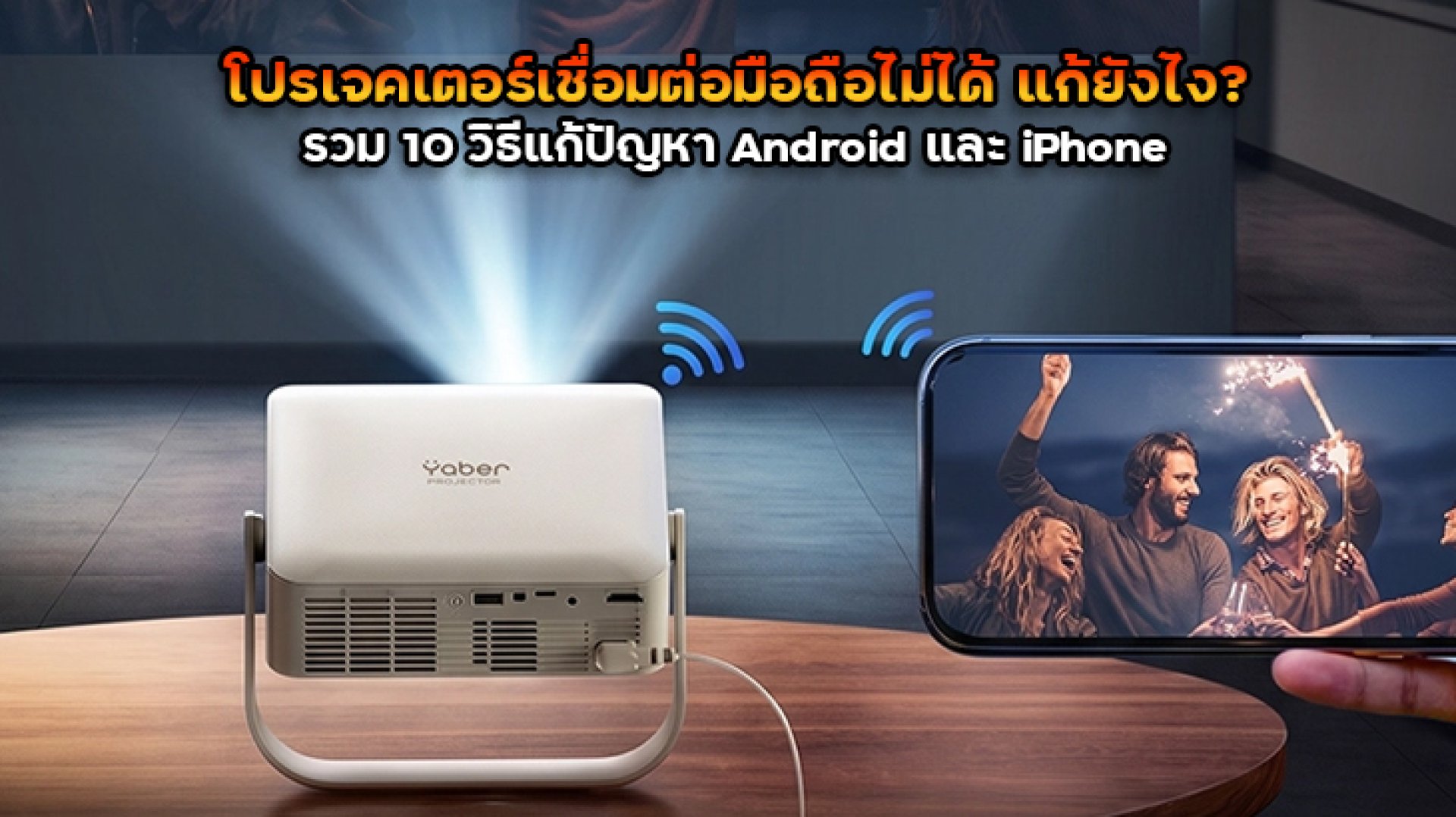
When your projector is not connecting to your phone, the problem may be caused by incompatible screen-mirroring technology, incorrect Wi-Fi settings, an unsupported USB-C connection, or a projector that is not in the correct input mode. Fortunately, many connection problems can be resolved without replacing either device.
Before buying a new cable or installing another app, identify how you are trying to connect your phone to the projector. Wireless screen mirroring, casting through a streaming app, and a wired HDMI connection work differently, so each method requires a different troubleshooting approach.
This guide explains how to fix common projector connection problems on Android phones and iPhones, including what to check when your phone cannot find the projector or the projector displays a blank screen.
1. Check Whether Your Phone and Projector Support the Same Connection Method
One of the most common reasons a phone cannot connect to a projector is that the two devices do not support the same connection technology.
For example, some Android phones support Miracast, while other devices rely on Google Cast or manufacturer-specific casting features. iPhones generally use AirPlay for compatible wireless screen mirroring. A projector that supports one method may not support another.
| Connection Method | What It Requires | Important Note |
|---|---|---|
| Miracast | A compatible phone and projector | Not supported by every Android phone. |
| Google Cast | A compatible receiver or projector | Often works with supported apps; full-screen mirroring depends on device compatibility. |
| AirPlay | An iPhone and an AirPlay-compatible projector or receiver | Both devices may need to be on the same Wi-Fi network. |
| Wi-Fi Direct | Devices that support direct wireless connections | Setup differs by projector model and may not provide internet access at the same time. |
| HDMI adapter | A compatible phone, adapter, cable, and projector | USB-C or Lightning compatibility depends on the phone and adapter. |
How to fix it: Check your projector's user manual for supported connection methods, then confirm that your phone supports the same technology. Do not assume that every projector with Wi-Fi can mirror every smartphone.
2. Restart the Phone and Projector
A temporary software issue can prevent devices from discovering each other or completing a wireless connection. Restarting both devices is a simple first step.
- Turn off the projector and wait for it to shut down completely.
- Restart your smartphone.
- Turn the projector back on.
- Open the projector's screen-mirroring or wireless-display mode.
- Try connecting again from your phone.
If the devices were previously connected, allow a short interval before trying again. Some projectors need time to reset their wireless connection after a session ends.
3. Check Wi-Fi Settings
If you are using wireless projection, Wi-Fi settings can affect whether your phone detects the projector or maintains a stable connection.
When both devices use the same Wi-Fi network
- Confirm that the phone and projector are connected to the same network.
- Check whether the router has a guest network or client-isolation setting that prevents devices from communicating with one another.
- Move the devices closer to the router if the wireless signal is weak.
- Temporarily disconnect from a VPN if it interferes with local device discovery.
When the projector creates its own Wi-Fi connection
Some projectors use Wi-Fi Direct or a dedicated wireless network. In this case, follow the manufacturer's instructions to connect to the projector's network rather than assuming both devices must use your home Wi-Fi.
Depending on the connection method, your phone may disconnect from the internet while connected directly to the projector. This does not necessarily mean the connection has failed.
4. Enable Screen Mirroring on the Projector
Your phone may not detect the projector if the projector is still displaying its home screen, HDMI input, or another application instead of its wireless-display interface.
Depending on the model, the required option may be called:
- Screen Mirroring
- Wireless Display
- Miracast
- AirPlay
- Screen Share
- Wireless Projection
How to fix it: Use the projector's remote control or settings menu to open the correct wireless connection mode. Then return to your phone and search for available devices again.
If the projector has a setting that allows other devices to interrupt or replace the current connection, check that setting as well. Another phone may already be connected.
5. Fix Android Phone Connection Problems
Android phones use different names for their wireless display features, and the available options vary by manufacturer and model.
Steps to connect an Android phone
- Open the projector's compatible screen-mirroring mode.
- Enable Wi-Fi on your phone.
- Open Quick Settings and look for Cast, Smart View, Screen Share, Wireless Display, or a similar feature.
- Select the projector if it appears in the device list.
- Accept the connection request on the projector if prompted.
If the projector does not appear, check whether your phone supports the projector's specific protocol. Some Android phones do not support Miracast, and a Cast feature on the phone may not work with a Miracast-only projector.
If the projector appears more than once, check the labels carefully and select the connection method supported by both devices.
6. Fix iPhone Connection Problems
For wireless screen mirroring, an iPhone generally needs a projector or connected receiver that supports AirPlay. A projector with Wi-Fi does not automatically support AirPlay.
Steps to connect an iPhone
- Enable AirPlay or the appropriate wireless-display mode on the projector.
- Connect the iPhone and projector to the same Wi-Fi network if required by the device.
- Open Control Center on the iPhone.
- Tap Screen Mirroring.
- Select the projector or compatible receiver from the list.
- Enter the displayed passcode if requested.
If the projector is not listed, verify AirPlay compatibility, restart both devices, and check that the network allows local devices to communicate. If your projector does not support AirPlay, use a compatible receiver or a suitable wired connection instead.
7. The Phone Connects, but the Projector Shows a Black Screen
If the phone reports a successful connection but the projected image remains black, the problem may involve the selected input, the mirroring application, the content being played, or digital content protection.
Try these steps:
- Confirm that the projector is displaying the correct wireless input or application.
- Return to the phone's home screen to see whether ordinary screen content appears.
- Close and reopen the casting or mirroring application.
- Check whether the specific video application supports casting to your projector.
- Update the projector's firmware and the relevant app if updates are available.
Some streaming services restrict screen mirroring because of digital rights management (DRM). As a result, the phone's interface may appear normally while protected video content remains black. When this happens, use the streaming service's supported casting method or a compatible app installed on the projector.
8. Fix a Wired Connection That Does Not Work
If wireless projection is unreliable, a wired connection may be an alternative. However, connecting a cable does not guarantee that the phone can output video.
For USB-C phones
- Check whether the phone supports wired video output through USB-C.
- Use a compatible USB-C-to-HDMI adapter or hub that supports the phone's video-output standard.
- Connect the HDMI cable to the projector's HDMI input.
- Select the correct HDMI source on the projector.
Many USB-C ports support charging and data transfer but not video output. If the phone does not support video output, a standard USB-C-to-HDMI adapter may not work.
For iPhones
Use an Apple-compatible digital AV adapter or another adapter explicitly compatible with your iPhone model. The connector required depends on whether your iPhone uses USB-C or Lightning.
After connecting the cable, select the corresponding HDMI input on the projector. If the screen remains blank, check the adapter, cable, power requirements, and compatibility with the phone.
9. The Connection Keeps Dropping or the Screen Lags
If the phone connects successfully but the image freezes, stutters, or disconnects, the cause may be a weak Wi-Fi signal, network congestion, interference, or a projector that is struggling to process the stream.
Try the following:
- Move the phone closer to the projector or wireless router.
- Reduce obstacles between the devices.
- Disconnect unused devices or applications that are consuming significant network bandwidth.
- Try another supported Wi-Fi band or network if both devices allow it.
- Update the projector firmware and phone software.
- Test a different video or application to determine whether the problem affects all content.
If the projector uses a direct Wi-Fi connection, check whether the phone is automatically switching back to another saved network. Some phones prioritize a network with internet access, which can interrupt a direct connection to the projector.
10. Update the Projector or Reset Its Network Settings
If none of the earlier steps works, check the projector manufacturer's support page for firmware updates and model-specific troubleshooting instructions.
You can also try resetting the projector's network settings if that option is available. This may remove saved Wi-Fi credentials and previous connection information, so make sure you have the details needed to reconnect.
Before performing a full factory reset, try forgetting the projector on your phone and pairing the devices again. A factory reset should be a last resort because it may erase other settings and installed applications.
Quick Troubleshooting Table
| Problem | Likely Cause | Recommended Action |
|---|---|---|
| Projector does not appear on the phone | Unsupported protocol or incorrect mode | Check compatibility and enable the correct wireless-display mode. |
| Phone cannot complete the connection | Network issue or saved connection conflict | Restart both devices and reconnect using the correct method. |
| Phone connects but shows a black screen | Incorrect input or protected content | Check the input and test ordinary screen content. |
| HDMI connection does not work | Unsupported video output or adapter | Verify phone video-output support and adapter compatibility. |
| Connection frequently drops | Weak signal or network switching | Improve signal quality and check saved-network behavior. |
| Only one streaming app fails | App compatibility or DRM restrictions | Use the service's supported casting method or native app. |
| Another phone is already connected | Projector connection limit or session conflict | Disconnect the other device and try again. |
How to Prevent Projector Connection Problems
A few checks before your next viewing session can reduce connection issues:
- Confirm that the projector supports your phone's wireless or wired connection method.
- Keep the projector firmware and relevant applications up to date.
- Use a compatible adapter and cable for wired connections.
- Save the correct connection instructions for your projector model.
- Check the Wi-Fi signal and network configuration before streaming.
- Test the connection before an important presentation or movie night.
Conclusion
If your projector will not connect to your phone, start by identifying the connection method and checking compatibility. Then verify the projector's display mode, Wi-Fi settings, and phone settings before moving on to cable or firmware troubleshooting.
For Android phones, confirm that the phone and projector support the same casting protocol. For iPhones, check AirPlay compatibility or use a compatible wired adapter. If the connection works but video playback fails, investigate app support and content-protection restrictions.
Following these steps can help you identify the cause without buying unnecessary accessories or replacing a device that may still be working properly.
Frequently Asked Questions (FAQ)
1. Why can't my phone find my projector?
Your phone may not support the projector's wireless protocol, or the projector may not be in screen-mirroring mode. Check compatibility, enable the correct mode, and restart both devices.
2. Can every Android phone connect wirelessly to a projector?
No. Android phones support different wireless-display technologies. Confirm whether your phone supports Miracast, Google Cast, or the connection method required by your projector.
3. Can I connect an iPhone to a projector without Wi-Fi?
Depending on the iPhone and projector, a compatible wired adapter and cable may allow video output without a Wi-Fi network. Wireless connection options depend on the projector's supported features.
4. Why does my projector connect to my phone but show a black screen?
The projector may be using the wrong input, the application may not support mirroring, or the video may be protected by DRM. Test the phone's home screen and check the streaming service's supported playback methods.
5. Does Bluetooth connect a phone to a projector for video?
Bluetooth is generally used for audio, remote controls, or device accessories rather than transmitting full-screen video. Video projection usually requires a supported wireless-display method, a compatible casting system, or a wired video connection.
6. Will a USB-C-to-HDMI cable work with every Android phone?
No. The phone must support video output through its USB-C port, and the adapter must be compatible. A USB-C port that supports only charging and data transfer may not output video through a standard HDMI adapter.
References