How Much Can a Cooling Pad Reduce CPU and GPU Temperature?
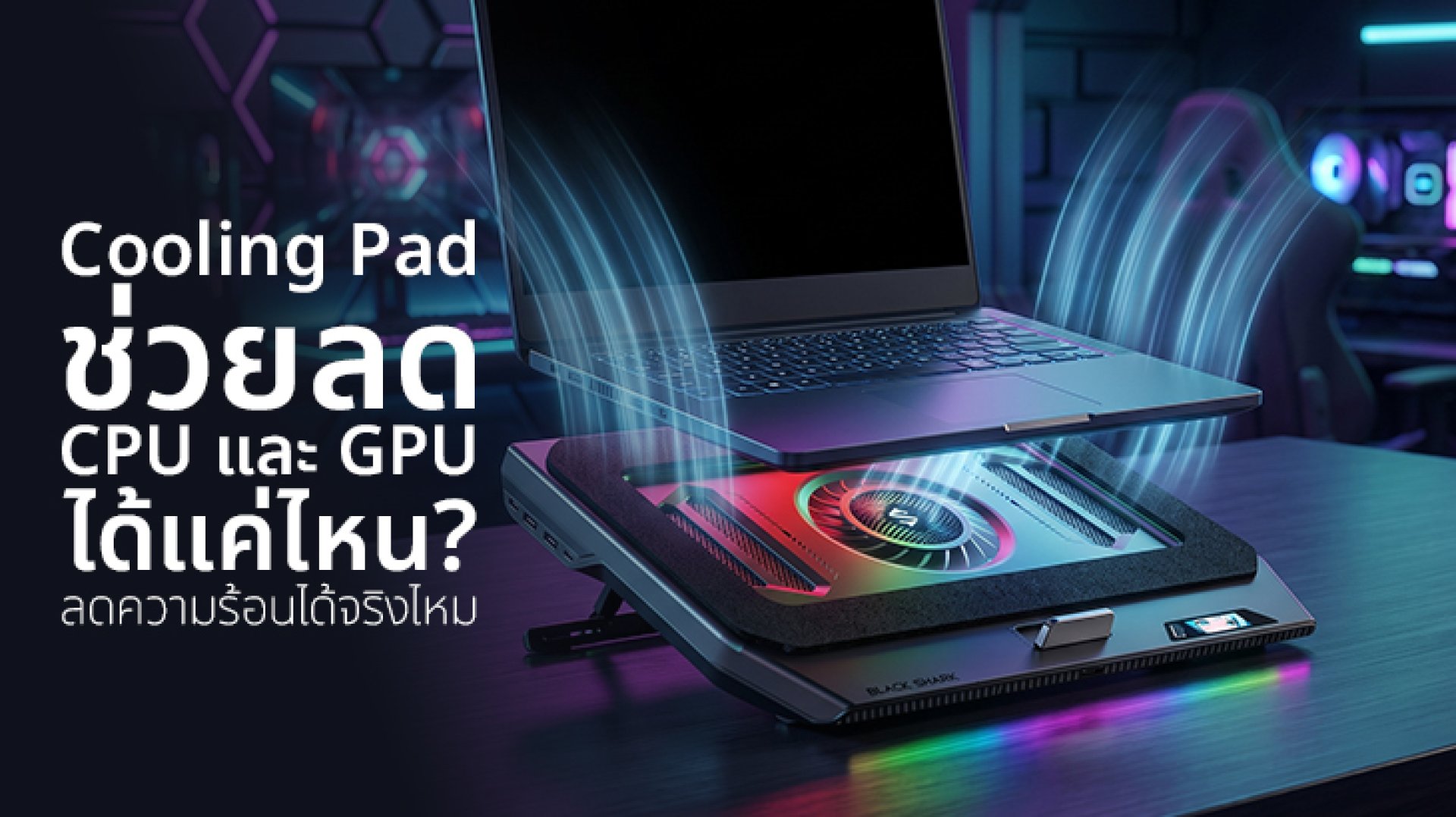
Ever been gaming on a laptop and noticed the fans suddenly sound like the machine is preparing for takeoff?
After a while, the laptop may become noticeably hot, fan noise can increase, and in some situations, gaming performance may become less consistent.
That is when many users start looking at a Cooling Pad.
But then comes the obvious question:
How many degrees can a Cooling Pad actually reduce CPU and GPU temperature?
The most accurate answer is: there is no fixed number.
A Cooling Pad may help reduce CPU and GPU temperatures, but the actual result depends on several factors, including the laptop's intake design, internal cooling system, Cooling Pad airflow, room temperature, and workload.
So claims such as every Cooling Pad reduces temperatures by exactly 5°C or 10°C should be treated carefully.
How Does a Cooling Pad Reduce CPU and GPU Heat?
The first thing to understand is that a Cooling Pad does not directly cool the CPU or GPU.
Both components are located inside the laptop and rely on the laptop's internal thermal system, which may include heat pipes, heatsinks, and internal fans.
The main purpose of a Cooling Pad is to provide additional Airflow underneath the laptop and support the flow of air into the laptop's cooling system.
A simplified airflow path looks like this:
Cooling Pad

Additional Airflow

Laptop Intake

Internal Fan + Heatsink

CPU / GPU

Heat Dissipation

Hot Air

Laptop Exhaust
In other words, a Cooling Pad is primarily an airflow support system, rather than a dedicated CPU or GPU cooler.
Can CPU and GPU Temperatures Drop by the Same Amount?
Not necessarily.
This is an important point when evaluating laptop cooling.
Even when using the same Cooling Pad on the same laptop, CPU and GPU temperatures may respond differently to additional airflow.
That is because the CPU and GPU may be positioned differently inside the laptop and may use separate or shared heat pipes and cooling components depending on the laptop's design.
The laptop's power and thermal management systems can also adjust CPU and GPU behavior according to workload, temperature, and power limits.
Intel notes that laptop thermal behavior depends on the system design provided by the OEM, including the overall thermal and power characteristics of the platform.
How Much Can a Cooling Pad Reduce CPU Temperature?
The answer depends heavily on the laptop.
If the laptop's main intake vents are located on the bottom and the Cooling Pad can effectively deliver airflow to those areas, the additional airflow may help the internal cooling system operate more effectively.
However, if the laptop has limited intake openings or the Cooling Pad's fans are positioned away from the important intake areas, the improvement may be smaller.
CPU temperature can also be affected by:
- CPU model
- CPU power limit
- CPU workload
- Room temperature
- Internal cooling design
- Thermal interface materials
- Dust buildup
- Fan condition
- Performance mode
Intel explains that processor temperature and frequency can change according to workload, while thermal protection mechanisms can be used when temperatures reach defined limits.
How Much Can a Cooling Pad Reduce GPU Temperature?
The GPU follows a similar principle.
When gaming or running graphics-intensive applications, the GPU can generate significant heat.
If a Cooling Pad improves the airflow available around the laptop's intake area, it may help the laptop's cooling system manage GPU heat more effectively.
However, this does not mean that every Cooling Pad will reduce GPU temperature by a specific number of degrees.
This is especially important with Gaming Laptops that use shared cooling systems between the CPU and GPU. In these systems, changes in airflow can influence both components at the same time.
Why Do Some Cooling Pads Reduce Temperature More Than Others?
This is why you should not judge a Cooling Pad simply by its RPM or number of fans.
1. Laptop Intake Location
This is one of the most important factors.
If the Cooling Pad's airflow is directed toward the laptop's intake vents, the internal cooling system may benefit more from the additional airflow.
But if the fan is positioned away from the laptop's actual intake area, a large amount of airflow may have limited practical impact.
2. Airflow Design
A good Cooling Pad is not simply about producing strong airflow.
It is also about where the airflow goes.
This is why a larger or faster fan does not automatically guarantee a larger reduction in CPU or GPU temperature.
3. Internal Laptop Cooling Design
Every laptop can have a different internal thermal architecture.
Some Gaming Laptops use multiple heat pipes, while others use shared cooling systems for the CPU and GPU.
Fan placement, heatsink size, heat pipe configuration, and intake design can all affect the result.
As a result, the same Cooling Pad may perform differently on two different laptop models.
4. Room Temperature
If the room is already hot, the Cooling Pad is still working with relatively warm ambient air.
A Cooling Pad is not an air conditioner. It cannot continuously make the laptop cooler than the surrounding environment simply by increasing fan speed.
5. Workload
Playing a lightweight game and running a demanding AAA game can produce very different thermal loads.
Therefore, temperature comparisons should be performed under similar conditions, such as the same game, graphics settings, test duration, and performance mode.
Does a Cooling Pad Automatically Increase FPS?
Another important distinction is that lower temperature does not automatically mean higher FPS.
If the laptop is already operating within its designed thermal and power limits, adding a Cooling Pad may not produce a noticeable FPS increase.
However, if the laptop is experiencing thermal limitations, improving airflow may help it maintain more consistent operating conditions during sustained workloads.
This is where Thermal Throttling becomes relevant.
When a processor reaches a thermal limit, the system may reduce clock speed or power to control temperature. This can affect performance and, in some situations, contribute to stuttering or reduced responsiveness.
What Does Thermal Throttling Have to Do With Cooling Pads?
Think of the process like this:
CPU / GPU Under Heavy Load

Heat Increases

Cooling System Works Harder

Temperature Rises

Thermal Limit Reached

Clock / Power Reduction

Performance May Decrease
A Cooling Pad does not directly prevent Thermal Throttling.
However, if insufficient external airflow is part of the thermal problem, improving airflow may help the laptop manage heat more effectively.
In some situations, this may help the system maintain performance for longer before reaching thermal limits.
But if the main problem is internal dust buildup, a malfunctioning internal fan, inadequate internal cooling, or a system-level power limitation, a Cooling Pad may not solve the underlying issue.
How to Test Whether a Cooling Pad Actually Helps Your Laptop
If you want a reliable answer for your own laptop, the best approach is to test before and after using the Cooling Pad under similar conditions.
Before Using the Cooling Pad
- Use the same game or application
- Use the same graphics settings
- Use the same performance mode
- Run the test for the same amount of time
- Record CPU temperature
- Record GPU temperature
- Monitor CPU clock speed
- Monitor GPU clock speed
- Record FPS or overall performance
After Installing the Cooling Pad
Repeat the same test under conditions as similar as possible.
Then compare the results.
| Metric | What to Check |
|---|---|
| CPU Temperature | Peak and average temperature |
| GPU Temperature | Peak and average temperature |
| CPU Clock | Ability to maintain operating frequency |
| GPU Clock | Ability to maintain operating frequency |
| FPS | Performance consistency |
| Fan Noise | Laptop and Cooling Pad fan noise |
This is more useful than looking only at the maximum temperature because sustained performance and thermal behavior can be more important than a single peak temperature reading.
Is a More Powerful Cooling Pad Always Better?
Not necessarily.
A high-performance fan may move a large amount of air, but that airflow still needs to reach a useful location.
If the airflow does not align with the laptop's intake design, the practical cooling benefit may be smaller than expected.
On the other hand, a Cooling Pad with a well-designed airflow path may perform effectively even if its specifications do not appear as impressive at first glance.
Useful airflow can matter more than maximum airflow.
How Does Pressure Cooling Help?
This is where the concept of Pressure Cooling becomes relevant.
Pressure Cooling focuses on controlling and directing airflow toward the areas where the laptop needs it, rather than simply placing a fan underneath the laptop and blowing air upward.
The key concepts include:
- Airflow
- Air pressure
- Air intake
- Airflow direction
- Laptop intake position
However, Pressure Cooling does not mean that the air itself is magically made colder like an air-conditioning system.
The idea is to improve how air is delivered to and through the laptop's cooling system.
Who Can Benefit From a Cooling Pad?
A Cooling Pad can be particularly useful for users who:
- Play games on a Gaming Laptop for long periods
- Run demanding CPU or GPU workloads
- Edit videos
- Work with 3D rendering applications
- Notice high temperatures during heavy workloads
- Want additional airflow underneath the laptop
- Want to support more consistent thermal performance
However, if a laptop is experiencing unusually high temperatures, it is important to check the internal cooling system, fans, ventilation openings, and manufacturer recommendations as well.
A Cooling Pad cannot fix every internal thermal problem.
What About the Black Shark Supercharged Laptop Cooler Pro?
For Gaming Laptop users looking for a more advanced external cooling solution, the Black Shark Supercharged Laptop Cooler Pro is an example of a laptop cooler designed with airflow and pressure-based cooling in mind.
Its design focuses not only on fan power but also on delivering airflow toward the bottom intake area of the laptop.
The cooler uses a large 140 mm fan with 29 blades and supports laptops in approximately the 14- to 18-inch range.
For real-world use, however, the most important factor is still the intake position of the Gaming Laptop being used with the cooler.
External cooling performance depends on how well the cooler's airflow works with the laptop's own thermal architecture.
View Black Shark Supercharged Laptop Cooler Pro
How Much Can a Cooling Pad Reduce CPU and GPU Temperature?
If the question is How many degrees can a Cooling Pad reduce CPU and GPU temperature?, the most accurate answer is that there is no single number that applies to every laptop.
The result depends on the Cooling Pad's airflow, the laptop's intake location, internal cooling architecture, room temperature, workload, and the system's power and thermal management.
Instead of focusing only on a specific temperature reduction, it is more useful to ask whether the Cooling Pad helps the laptop manage heat more effectively and maintain sustained performance under heavy workloads.
Because in the end:
The best Cooling Pad is not necessarily the one that produces the biggest temperature drop. It is the one that delivers useful airflow to the places where the laptop actually needs it.
Related Articles
- Cooling Pad vs Laptop Cooling Fan: What's the Difference?
- What Is Pressure Cooling? Laptop Cooling Technology Explained
- Is a Laptop Cooling Pad Necessary for Gaming?
- What Is Thermal Throttling? Why Gaming Laptops Can Lose Performance
- Black Shark Supercharged Laptop Cooler Pro